Input Glyphs
Input glyphs are the icons that show a controller's buttons and sticks, in places like the controls settings and button guides. Controlify has glyph sets for its built-in controller types, and a resource pack can add its own or change the built-in ones.
A glyph set is a normal Minecraft font plus a font mapping, which says which character of the font draws each input. Both are found from the controller type ID. For the type <namespace>:<path>, Controlify uses:
| File | Path |
|---|---|
| Font | assets/<namespace>/font/controller/<path>.json |
| Font mapping | assets/<namespace>/controller/font_mapping/<path>.json |
To give a controller its own type, see Custom Controller Identification.
Creating a glyph set
These steps make a glyph set for the controller type my_resource_pack:switch.
1. Create the font
TIP
See the Minecraft Wiki for how font files and their providers work.
Create assets/my_resource_pack/font/controller/switch.json:
{
"providers": [
{
"type": "bitmap",
"file": "my_resource_pack:font/controller/switch.png",
"ascent": 11, // pixels above the baseline
"height": 16, // height of each glyph
"chars": [
// each string is one row of the image; each character is one 16x16 cell
"",
""
]
}
]
}Any characters work, as long as the font mapping uses the same ones. Controlify's built-in sets use the Unicode private use area, starting at .
2. Create the texture
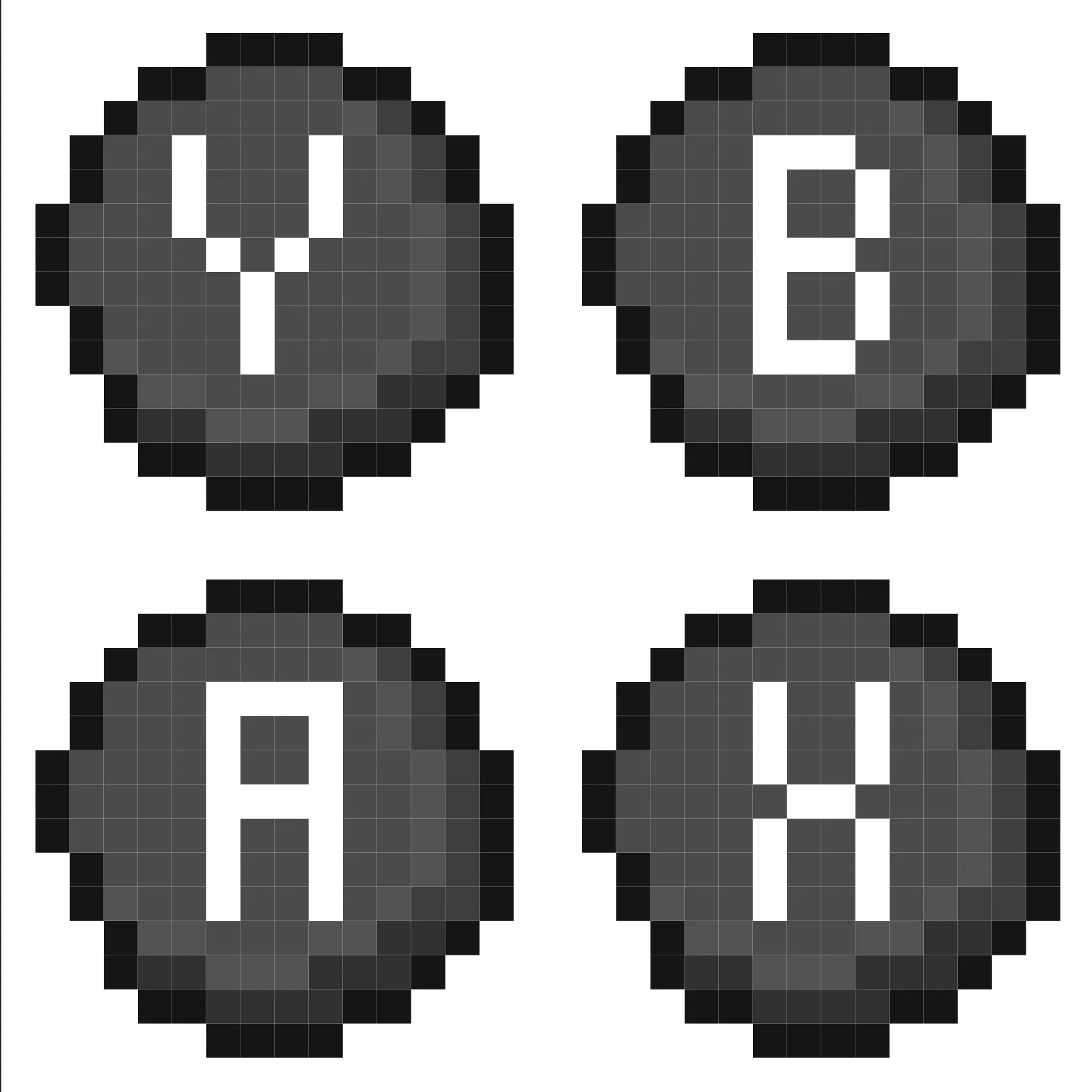
The file in a bitmap provider is relative to textures/, so this font reads assets/my_resource_pack/textures/font/controller/switch.png.
3. Create the font mapping
The font mapping links each input ID to characters of your font.
A Switch controller has this face button layout:
   X
Y     A
   B
So controlify:button/north is X, controlify:button/east is A, controlify:button/south is B and controlify:button/west is Y.
Create assets/my_resource_pack/controller/font_mapping/switch.json:
{
"controlify:button/north": "",
"controlify:button/east": "",
"controlify:button/south": "",
"controlify:button/west": ""
}| Key | Value |
|---|---|
| An input ID | One or more characters from your font, drawn in sequence. |
controlify:gesture/<gesture> | A gesture badge. See Gesture badges. |
You only need to map the inputs your controller has. An input your mapping leaves out uses the glyph from controlify:default, drawn in the default set's font. An input that neither set maps is shown as a short text label instead, like B3 for controlify:button/3, A1+ for controlify:axis/1/positive and H0↑ for controlify:hat/0/up.
A chord is drawn as its modifiers, a +, then its trigger.
4. Gesture badges (optional)
When an action's binding uses a gesture such as a tap or a long press, a small badge is drawn after its glyph. A glyph set without badges uses the badges from controlify:default, so you can skip this step.
Badges use the key controlify:gesture/<gesture>. The default set has badges for tap, long_press, release and long_hold. A gesture with no mapping in either set, like press or hold, has no badge. See Gestures for the full list.
The badge is drawn directly after the input glyph. To make it overlap the glyph, start the badge's mapping with a character from a space provider with a negative advance, followed by the badge itself. The default set does this:
// in the font
{ "type": "space", "advances": { "": -7 } },
{
"type": "bitmap",
"file": "controlify:font/controller/gestures.png",
"ascent": 11,
"height": 16,
"chars": [""]
}// in the font mapping
{
"controlify:gesture/tap": "",
"controlify:gesture/long_press": "",
"controlify:gesture/release": "",
"controlify:gesture/long_hold": ""
}The advance of a bitmap glyph is the width up to its right-most pixel, plus one. gestures.png is 24 pixels wide, so each badge has a 6 pixel cell, and each badge is drawn against the right edge of its cell. An advance of -7 moves the badge back over the right edge of the input glyph and leaves the total width unchanged. Leave out the space character to draw the badge after the glyph instead.
Changing a built-in glyph set
Use the built-in type's ID. For controlify:switch, the files are assets/controlify/font/controller/switch.json and assets/controlify/controller/font_mapping/switch.json.
A font mapping from a higher-priority resource pack replaces the built-in one completely, so include every input you want to keep. Any input you leave out falls back to the default set.
To only change how the glyphs look, replace the texture, like assets/controlify/textures/font/controller/switch.png, and keep each glyph in the same place in the grid.